
LOCAL AI & DOCUMENTS
Classify documents in seconds with local AI
A practical guide to using small local models with Paperless-ngx, and why reading the scan usually takes longer than classifying the text.
A photo of a receipt is easy to take. Finding it again when a device breaks is another matter. It might be somewhere in your camera roll, attached to an email, or saved in a folder you meant to tidy up.
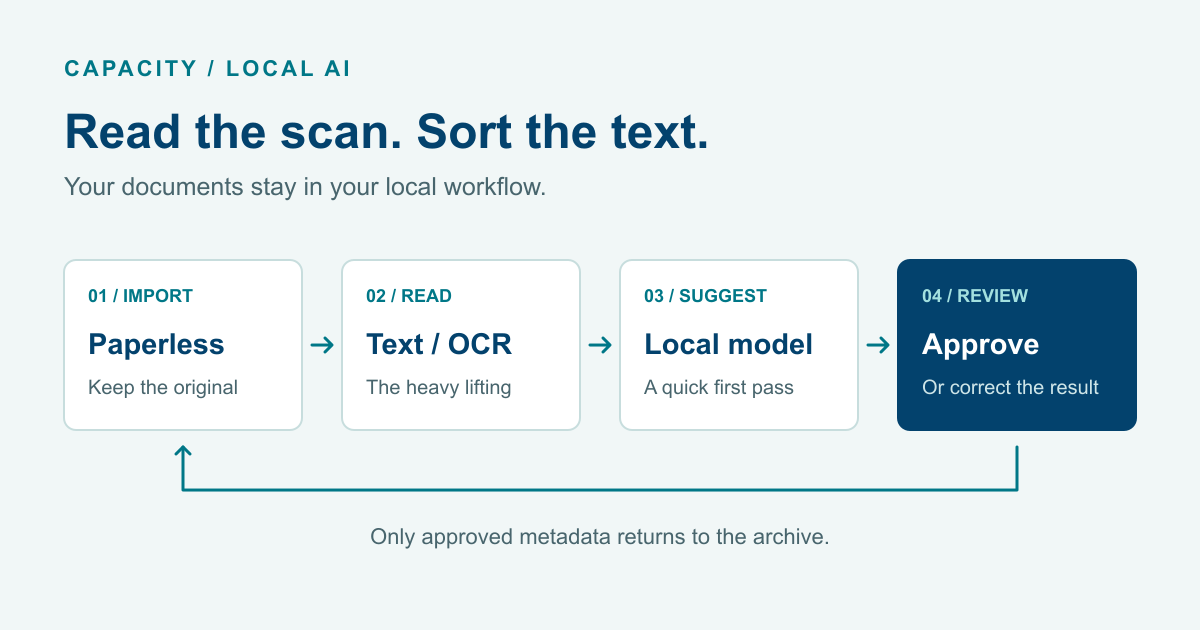
We run PLX, a local Paperless-ngx installation, to keep receipts, statements and other paperwork in one searchable archive. Once a document is imported, a small local model reads the extracted text and assesses its document type and useful labels. The classification pass takes a few seconds. Most of the waiting on scans happens before that, while OCR reads the page.
A quick choice from a short list
Sorting the morning post rarely requires much thought. You recognise a bank statement, put a receipt aside and spend longer on an unfamiliar letter. A System 1 model does the first of those jobs in software: choosing among a small set of answers.
We use Laya’s multilingual model. It takes document text and a question, scores the possible answers and returns a structured result. For example, the choices might be invoice, bank statement, receipt or other. There is no generated paragraph to interpret before your archive can use the answer. The model card explains how it works and where it falls short.
Local inference suits this job well. Personal and business records stay on our machine during classification, and we can try another question without another cloud API charge. In PLX, the OCR also runs locally. The initial model download needs a connection; processing the documents happens on our own hardware.
Slow to read, quick to sort
A few seconds to classify the text; tens of seconds to read a scan. In our PLX runs, OCR took most of the processing time on scanned documents.
OCR has the harder input. A phone photo may contain faded ink, tiny print, a fold through the total and half the kitchen table. The OCR model has to turn that into usable text. Once the words are available, the classifier has a much smaller job.
PDFs with usable embedded text skip image OCR altogether. Scans go through a separate local, image-capable OCR model before classification. Longer documents and model startup can still slow things down, but the main delay on the scans we checked was reading the page.
This gives us somewhere useful to spend our effort. Keep the classifier loaded and reuse connections between documents. Then improve the input: take a sharper photo, straighten the page, or try an OCR model better suited to the scans. We found a page where OCR recognised the words but mixed up invoice and payment columns. A quick classification cannot fix that, so the original stays available beside the extracted text.
Labels that help you find things
Start with the main document type, then ask about other properties. A receipt may also be proof of payment and worth keeping for a warranty claim. Those labels describe different reasons to look for the same document later.
Ownership needs its own evidence. The shop on an anonymous receipt tells you who sold something, not whether the purchase was private or for a business. Let that answer stay unclear. Incoming and outgoing invoices likewise depend on who issued them and who received them.
Use the categories already in Paperless and give similar ones clear definitions. That avoids writing rules for every supplier you happen to know today. With a larger catalogue, you can ask for a broad category first and a narrower one afterwards. Local queries make that affordable, though you still need to check that a wrong early choice doesn’t exclude the right answer.
A basic way to try it
- Set up a few categories. Create document types such as invoice, receipt, bank statement and other. Add a personal/business field and an “AI review” status. Keep payment status and accounting approval separate from document type.
- Choose documents you can check. Include text PDFs, phone photos and unfamiliar documents. Label them by hand and hold some aside while you adjust the questions.
- Try the local model. Use a separate Python virtual environment and the example below. The first load downloads model files. Keep the model loaded for later requests and record which SDK and model revision you used.
- Connect it to Paperless. After import, a “Document Added” workflow can send the document ID to a local worker. The worker fetches its text and category catalogue through the authenticated API. Keep the credentials on the server. Paperless documents its workflows and REST API.
- Store a suggestion. Save the proposed type, alternatives and review reason separately from approved fields. Show the original during review, and preserve saved amounts, payment status and human corrections when processing again.
- Check before automating. Compare the results with your hand-labelled examples, including the ones you held aside. Automate only the decisions that work reliably on your documents. Keep the rest in review.
The local model call
# In a fresh virtual environment: pip install laya
import laya

# Load once; reuse the model for subsequent documents.
agent = laya.load("convaiinnovations/laya-multilingual")
text = "Account statement. Opening balance 100 EUR. Closing balance 80 EUR."
questions = {
    "document_type": {
        "type": "choice",
        "instructions": "Which category best describes this document?",
        "criteria": {
            "A": "Invoice: requests payment for goods or services",
            "B": "Bank statement: reports balances and account transactions",
            "C": "Receipt: records a purchase and its payment",
            "D": "Other or insufficient evidence"
        }
    }
}
result = agent.predict(text, questions, max_len=8192)
print(result["answers"])  # Inspect the result; do not write to Paperless yet.
This example uses invented text and writes nothing to Paperless. Your worker still needs to map the returned option to a category ID and save the suggestion according to your review policy.
Our laya-multilingual-8k service name is a local alias. The extended context setting gives longer documents more room, but questions and answer definitions share that space. Count with the model’s tokenizer and split oversized text into overlapping sections. If the sections disagree, send the document to review. Keep every page in the process.
Checking the result
In our tests, Laya gave high scores to incompatible categories at the same time. Those results were unsuitable for automatic filing, so PLX kept them in review. Shorter questions and repeated comparisons did not reliably resolve the problem. The speed is useful; the classification quality still needs work in our current setup.
A larger model can take a second look at an awkward image or compare conflicting evidence. We start that review manually in PLX. Unclear ownership, poor OCR and contradictory answers all give us a reason to look more closely, even when the model’s scores seem high.
Keeping these steps separate lets us try a different classifier or improve OCR without moving the archive. Meanwhile, the original receipt is stored, searchable and there when we need to check it.
Further reading: the Laya multilingual model card covers context and calibration limits. paperless-jev gave us ideas for proposals, approval and tests that hide existing labels. Its default classifier uses hosted TypeSafe inference. A local Laya connection needs its own adapter.